How to write prompts for great AI T-shirt designs
Generating custom shirt designs with AI is exciting — but the quality of the image depends a lot on how you describe your idea. That’s where this guide comes in.
The prompt formula
- Subject
- What it is doing
- Style
- Colours or mood
- Short text (optional)
You don't need all five parts every time, but each one you add gives the AI a clearer picture. Put any text you want printed in quotes.
Example: A fox reading a newspaper on a Paris rooftop, street poster collage style, red and black, with the text 'Bonjour'
Step by step: from a tiger to a finished design
Funny, artistic, or photo-real: follow these steps and your design turns out exactly as imagined.
1. Start with the Subject
What should be in the image?
Example: "I want a tiger." – Too basic — the AI needs more detail.
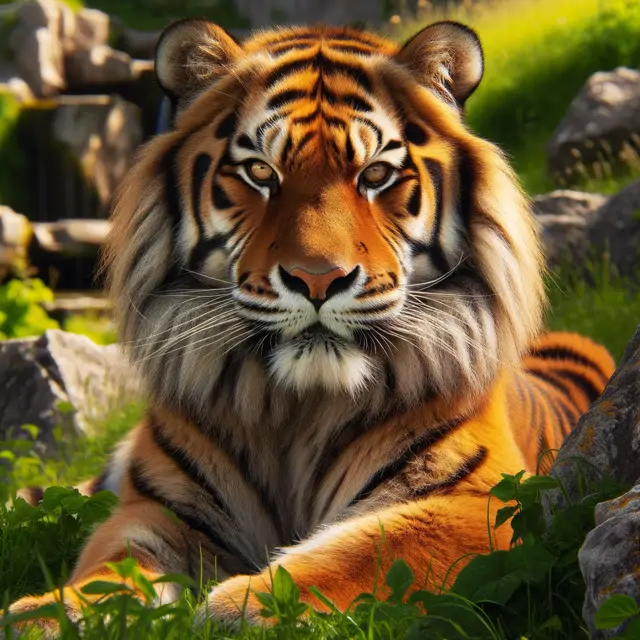
2. Add Description
What kind of tiger? Doing what?
Example: "A fierce tiger running through the jungle."
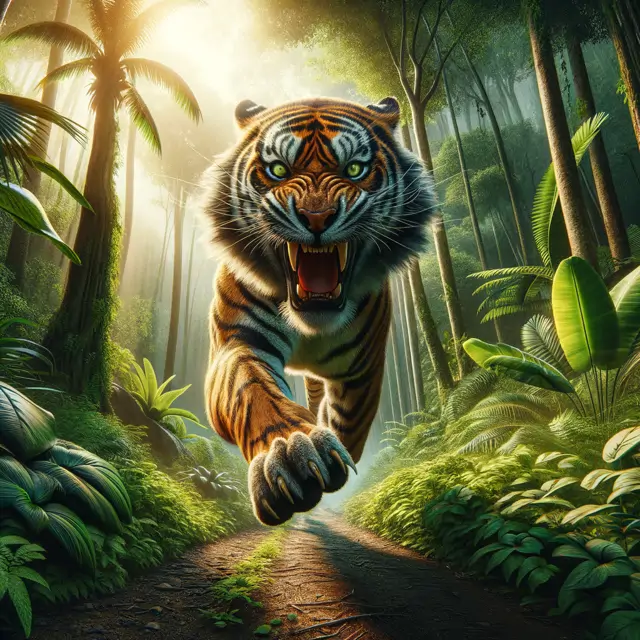
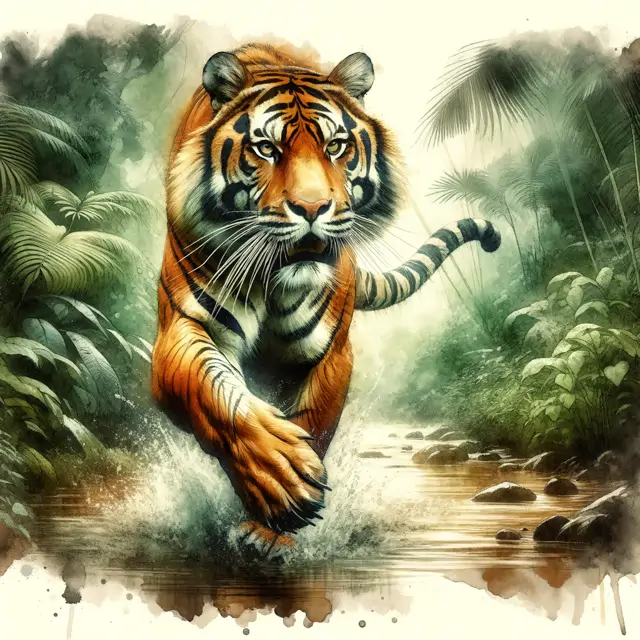
3. Choose a Style
How should it look? (cartoon, photorealistic, painting, 3D)
Example: "A fierce tiger running through the jungle, painting style."
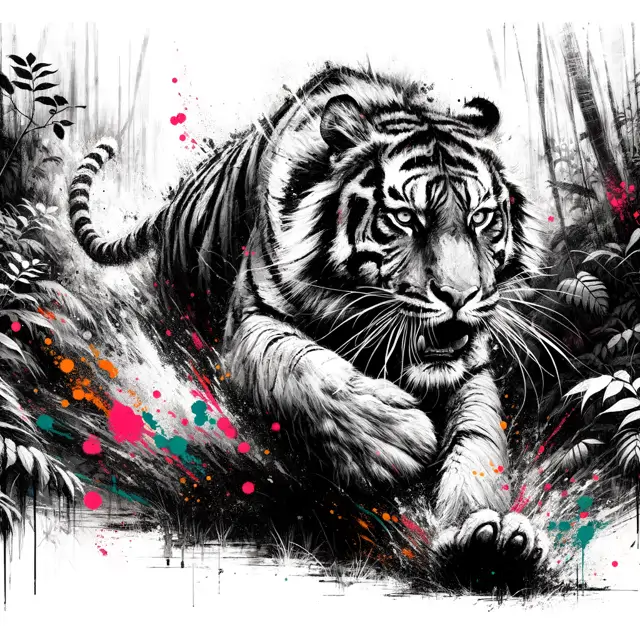
4. Add Mood or Setting
Include lighting, time of day, or vibe.
Example: "A fierce tiger running through the jungle, painting style black and white with colorful accents."
Tips for designs that look good on a shirt
- One clear subject beats a busy scene. A shirt is usually seen from a few metres away.
- Limit the colours. Two or three strong colours print better than a rainbow.
- Choose a transparent background if only the motif should be printed on the fabric.
- Use portrait format (3:4) for tall subjects like people or buildings, and square (1:1) for everything else.
- Keep text short and put it in quotes, for example 'Born to Chill'.
Almost right? Change it with a second prompt
Select the design in your gallery, choose 'Edit image' and describe only the change, for example 'make the sky purple' or 'remove the text'. You can also upload your own photo and change it the same way.
Common mistakes
- Too vague: 'something cool' gives the AI nothing to work with.
- Too many ideas in one prompt: pick the one that matters most and leave the rest for another design.
- Long sentences as text on the shirt: AI handles a few short words much better.
- Famous logos, brands or characters: you're responsible for not using other people's protected work (see our terms), so stick to your own ideas.
Prompt ideas to try
-
An astronaut relaxing in a hammock between two planets, with the text 'Space Out'
Try this prompt -
A retro 80s sunset over the ocean with palm trees and a neon grid
Try this prompt -
A cat as a samurai under cherry blossoms, Japanese woodblock print style
Try this prompt -
A mountain landscape inside a coffee cup, minimal line art
Try this prompt -
A skeleton playing electric guitar on a burning stage, bold black and orange
Try this prompt -
A tiny dragon sleeping on a stack of books, watercolour style
Try this prompt
Ready to try it?
Open the designer, write your prompt and see your design in seconds.